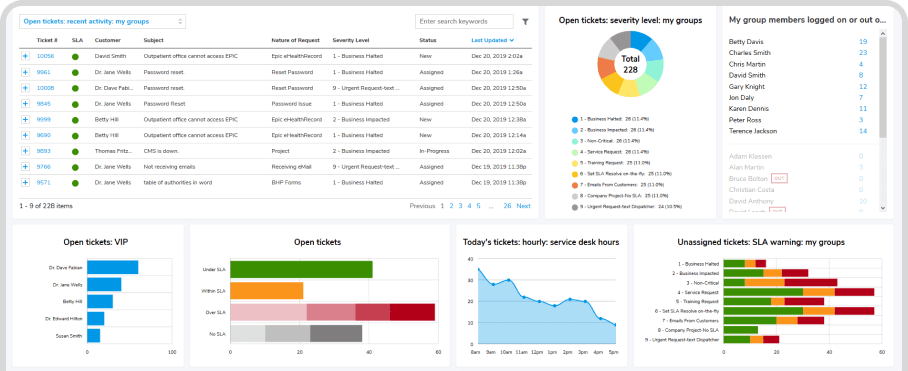
Knowledge Management with AI Automation
Preserve and Prosper
Cultivate & leverage in-house experience through shared knowledge.
Giva inspires a movement of contribution where wisdom is captured and leveraged.

Safety and Security of HIPAA/HITECH Compliance

Knowledge Bases Dramatically Increase Productivity
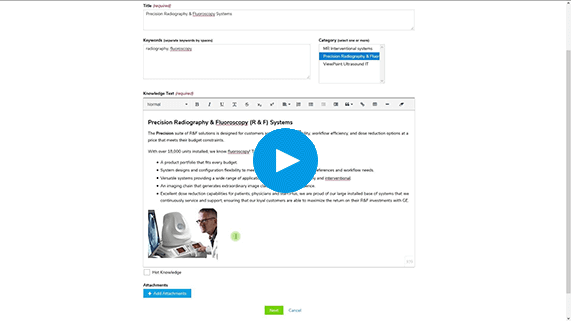
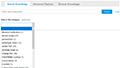
Create a Knowledge Article
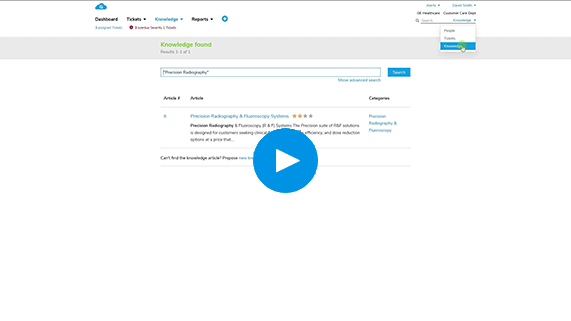
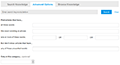
Find Knowledge Articles
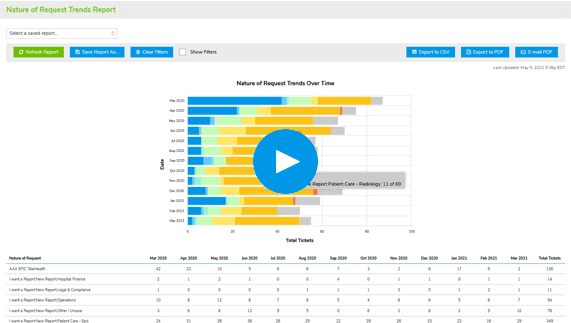
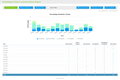
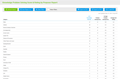
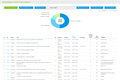
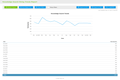
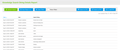
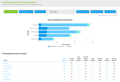
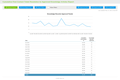
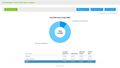
Easy, Robust, Real-Time Reports


Reduce Support Costs & Empower Self-Service
- AI Knowledge CopilotOffers instant, summarized answers from your existing articles—boosting self-service success rates while grounding answers in trusted content
- Citations with every AI responseHelps customers trust the information and reduce support follow-ups
- Natural‑language, Boolean, and keyword search enginesImproves self-service success with the most accurate results
- Instantly redirect unresolved queries to an agentBrings rapid handling to increase customer satisfaction

Reduce Support Costs & Empower Self-Service
- AI Knowledge CopilotOffers instant, summarized answers from your existing articles—boosting self-service success rates while grounding answers in trusted content
- Citations with every AI responseHelps customers trust the information and reduce support follow-ups
- Natural‑language, Boolean, and keyword search enginesImproves self-service success with the most accurate results
- Instantly redirect unresolved queries to an agentBrings rapid handling to increase customer satisfaction
Boost Productivity & Collaboration across Teams
- Capture and share insights at issue creation timePrevents silos and ensure institutional memory
- AI Copilot can ingest and index documents like PDFs and Word filesKeeps documents instantly searchable and usable as answer sources
- Quickly bulk-import or update contentSaves hours through streamlined batch management tools
- Workflows, notifications, and ITIL‑aligned authoring and approval toolsEnhance cross-functional teamwork

Deliver Accurate, Relevant Info Exactly When Needed
- RAG-based CopilotGives agents and customers context-rich answers, pulling directly from your own approved knowledge base
- Centralize contentDrives consistency, ensuring everyone uses the latest troubleshooting guides, procedures, and best practices
- Advanced categorization and filteringEnables users to quickly locate relevant content—even in large knowledge bases
- Attach rich media (screenshots, files)Enhances clarity and reduce ambiguity in support articles

Deliver Accurate, Relevant Info Exactly When Needed
- RAG-based CopilotGives agents and customers context-rich answers, pulling directly from your own approved knowledge base
- Centralize contentDrives consistency, ensuring everyone uses the latest troubleshooting guides, procedures, and best practices
- Advanced categorization and filteringEnables users to quickly locate relevant content—even in large knowledge bases
- Attach rich media (screenshots, files)Enhances clarity and reduce ambiguity in support articles
Make Smarter Decisions with Usage Insights
- Leverage analytics on search patterns & usage trendsUncovers knowledge gaps and inform strategic content updates
- Monitor article performanceUse problem‑solving scores, ratings, and proposal-based metrics to keep your knowledge base finely tuned and relevant
- Obtain trend dataHelps prioritize new guides or enhancements to align knowledge strategy to real-world demand




Provide Your Customers with the Safety and Security of HIPAA/HITECH Compliance
HIPAA Compliance Included in All Editions at No Additional Cost & Covered by Cyber Liability Insurance Policy
You know that cyberattacks, data breaches, and malware pose significant threats, so adhering to stringent security and compliance standards is paramount. HIPAA-level security benefits not only healthcare, but any industry, and is crucial for safeguarding customer privacy and personal information.
Get more details on how Giva's HIPAA Compliance keeps your data secure.
Customer Testimonials
<
>

We selected Giva in 2014 because you were $1 million cheaper and had about 80% of the functionality of ServiceNow®, and we could get up and running in many orders of magnitude less time with Giva than ServiceNow.
Mike Norman
Director
Giva's HIPAA compliant cloud IT help desk application has been an important foundation to our new strategy in IT, and has helped us achieve a 90% Service Level Agreement (SLA) compliance.
Louis Duhé
Vice President & Chief Information Officer
Selecting Giva was an excellent choice for Santé Health Systems. Compared with Ivanti® ITSM Help Desk, Giva is more intuitive, easier and faster to customize, more functional, and has outstanding reports and dashboards.
Juan Carlo Muro
IT Director
The Giva Service Management Suite and reports are consistently fast and responsive, proving that Giva has figured out how to build and scale a true cloud application delivered over the public Internet.
David Burne
IT Leader
Giva is an outstanding IT service desk product and we recommend it to anybody that wants to increase customer satisfaction and IT productivity while lowering costs by saving man-hours.
Eric Taylor
IT Manager
There are many significant reasons why Giva was selected over other vendors, but the biggest differentiator is that the Giva user interface is uncomplicated, uncluttered, clean and extremely easy to use.
Floyd Withrow
Chief Information Officer
We estimate a 75% reduction in time-to-deploy when compared with our initial Ivanti® ITSM Help Desk implementation, and the reduction of a combined FTE position with system support in the hosted environment and ease of reporting.
Suzanne DeBlanc
Vice President Customer Service
We estimate that we have been able to reduce the total cost of ownership of our IT service desk application by approximately 30% in the first year.
Neil Ferguson
Chief Technology Officer
Giva has implemented their workflows, grids, charts and other monitoring tools in an intuitive, slick and simple way, similar to the Apple Computer iPhone and iPad user interface design.
Ken Adams
Chief Information Officer
Westway is very satisfied with the hosted service and benefits provided by Giva. When comparing all of our IT vendors, Giva's commitment and passion in maintaining its products and providing excellent customer service is 'best in class' and clearly distinguished above the rest of our vendors.
Peter Griffiths
IT Director
The Giva Service Management Suite is a highly reliable solution which meets the demanding and high expectations of our customers.
Jim Kline
Director of Technology Group Operations
We've crunched the numbers. We know we are saving a lot of money using the Giva Service Management Suite versus other enterprise-class knowledge base and help desk software products.
William McDonald
CIO
Giva has had a very positive impact on our business and we are exceedingly pleased with our decision to purchase Giva's Cloud Computing Software-as-a-Service (SaaS) IT help desk application.
Steven Marks
CIO
We are very pleased with our decision to purchase Giva. We get a high level of support and dedication – in fact, they have surprised us with their very high level of responsiveness and attention. Hewlett Foundation is a very well satisfied customer.
Sally Lee
Information Services, Project Manager
Schedule a demo now, or start your own free, 30-day trial today.
Get free set-up assistance. At no cost to you, Giva's well-trained product experts will answer questions and make setup/configuration recommendations during the 30-day trial.
Start a Free Trial
Get a Demo